

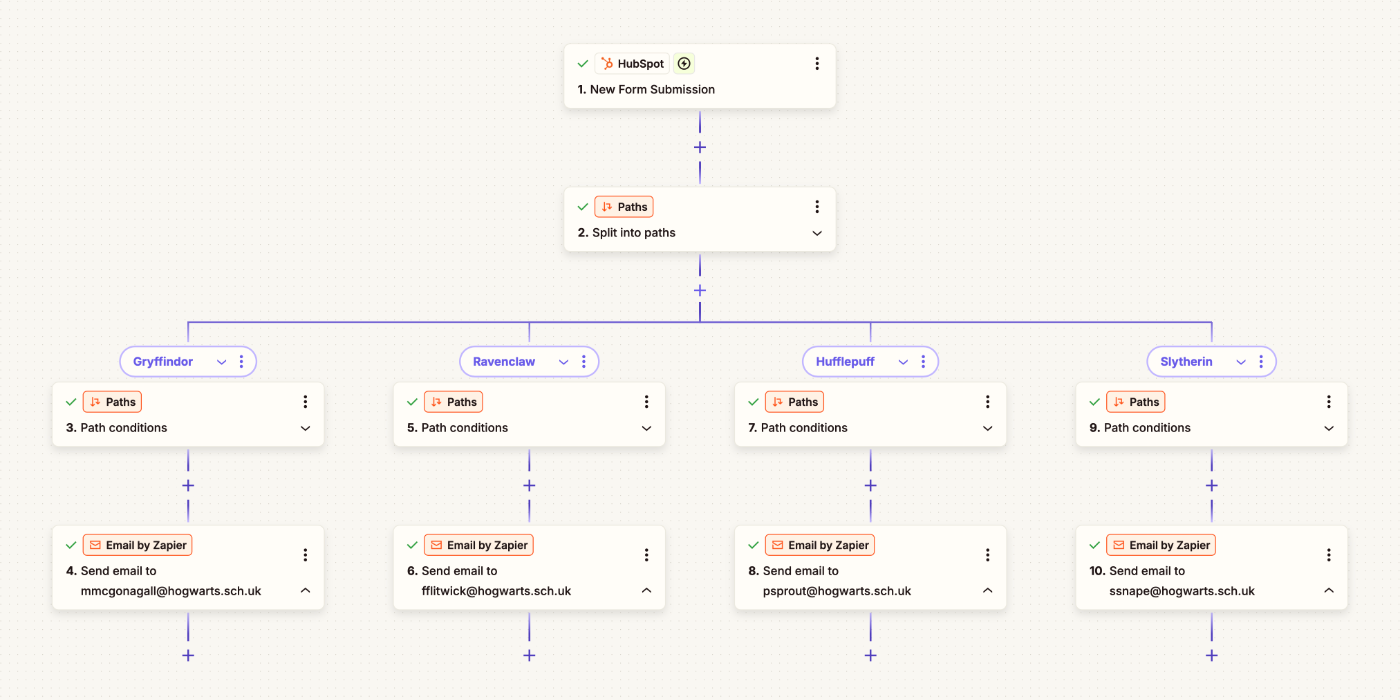
When you’re building automations in Zapier, most Zaps will follow a straightforward, linear path: trigger → action → action → done.
But business processes are not always that simple. Sometimes you want your Zaps to make decisions or to perform different actions depending on the available data or variables.
Enter Paths – a powerful Zapier feature that brings conditional logic to your Zaps, allowing you to create intelligent, contextual automations that adapt to different scenarios and inputs.
What is Paths
Paths is a native Zapier action that lets you add decision branches to your automations.
Instead of a Zap containing a single sequence of actions, you can build multiple branches or “paths” containing different actions into a single Zap. For each path you define a set of rules or criteria, and the actions within that path will only run if your specified criteria is met.
How Paths work
A Zap that uses Paths begins as normal with an enrolment trigger and continues down a linear path, collecting data along the way.
When it reaches the Paths step, it evaluates all of its collected data against the filter criteria you have defined, and then decides which path to follow.
If the data / context matches the defined criteria, the actions within that specific path will run. If not, the actions are skipped.
How to use Paths
Adding Paths to your Zap is really straightforward. At any point after your trigger step, click the plus icon and select Paths.
This will insert a Paths step, which looks a bit like an inverted family tree. By default, each Paths step contains two branches, and within each branch are three items:
- Path name – This is essentially the menu / navigation for each path. You can set the path name, add notes, and copy, duplicate or delete the path.
- Path conditions – This is where you define if and when the actions within this path will run.
- Path action/s – These are the actions you want to happen once the path conditions have been met. From here, you can add actions like you would in any other Zap.
When setting your path conditions, you have the option to define whether a path should follow custom rules, always run or operate as a fallback.
- Custom rules – Similar to a Filter step in Zapier, a Custom rules path branch lets you specify the criteria that needs to be met before the path branch will run. You use and/or logic to define this, and Zapier lets you layer multiple rules on top of each other, so you can get really granular with your filter criteria.
- Always run – One of those “does what it says on the tin” type features, an Always run path branch will … errrr … always run. You can have multiple always run path branches within your path group.
- Fallback – A Fallback path branch runs if none of the other paths within your path group have run. You can only have one fallback path branch within a path group, and it will automatically be positioned as the last branch in the group.
Paths run from top to bottom, left to right in the order they appear in the Zap editor. If you re-order your path branches, the logic / conditions remain the same, but the order in which they run will be impacted.
When to use Paths
If you ever find yourself creating multiple mostly identical Zaps that differ only in their filters or outcomes, the Paths action can help you consolidate these.
Here are some typical use cases:
- Segmenting leads: Send new leads to different sales team members based on company size or region.
- Task management: Create tasks in different areas of your project management app depending on the department or project type.
- Ticketing & support: Route tickets to different teams based on priority or issue type.
- Customer feedback: Send webinar / event follow-up surveys with different questions based on initial satisfaction scores.
One added bonus of using Paths to consolidate multiple Zaps into one is that maintenance is so much easier. When you need to update a trigger condition or modify an action, you only need to make changes in a single Zap instead of hunting down and updating multiple separate Zaps.
Using Paths not only saves you time but also reduces the risk of inconsistencies creeping into your automations.
Tips for using Paths effectively
- Start simple. Begin with two or three clear paths before adding complexity. This makes troubleshooting easier and helps you understand how data flows through your conditions.
- Name your paths clearly. Give each path a descriptive name that clearly indicates what it does, so you can identify what each branch is for at a glance.
- Don’t forget to include a Fallback path. Without this your Zap is effectively a dead end for any record that doesn’t meet any of your path criteria. Sometimes this may be by design, but in most cases you should have a plan for records that don’t proceed down one of your other path branches.
Limitations & gotchas
The biggest gotcha to be mindful of when using Paths is that your Zaps can and will execute multiple path branches in a single run. This is a critical difference from some other automation platforms (like HubSpot), where workflows end after the first matching branch executes.
But Zapier will continue evaluating all path branches beyond the first matching one, and if multiple paths have conditions that are met by your data, all of the actions within those paths will run.
You need to be really careful with your path logic to ensure that there’s no overlap and that you’re not accidentally enrolling the same record multiple times.
A couple of other things that are worth noting:
- At the time of writing (February 2026), Zapier only lets you create a maximum of ten unique branches within a paths group. However you are able to nest paths groups up to three levels deep, which is a handy workaround for that ten branch limit.
- There isn’t currently a way to merge or combine paths. If you find yourself in a position where you need to do this, it might be worth looking into Zapier’s Sub-Zap feature.
- Paths is only available on the Professional plan or above.
- Paths do not count towards your Zapier task usage, but obviously the actions within those paths do.
Final thoughts
The Paths feature transforms Zapier from a simple automation tool into a decision-making engine capable of handling sophisticated, contextual logic.
While it requires careful planning – particularly around ensuring your conditions don't overlap – the payoff is worth it: fewer Zaps to manage, more intelligent workflows, and automations that truly adapt to your needs.